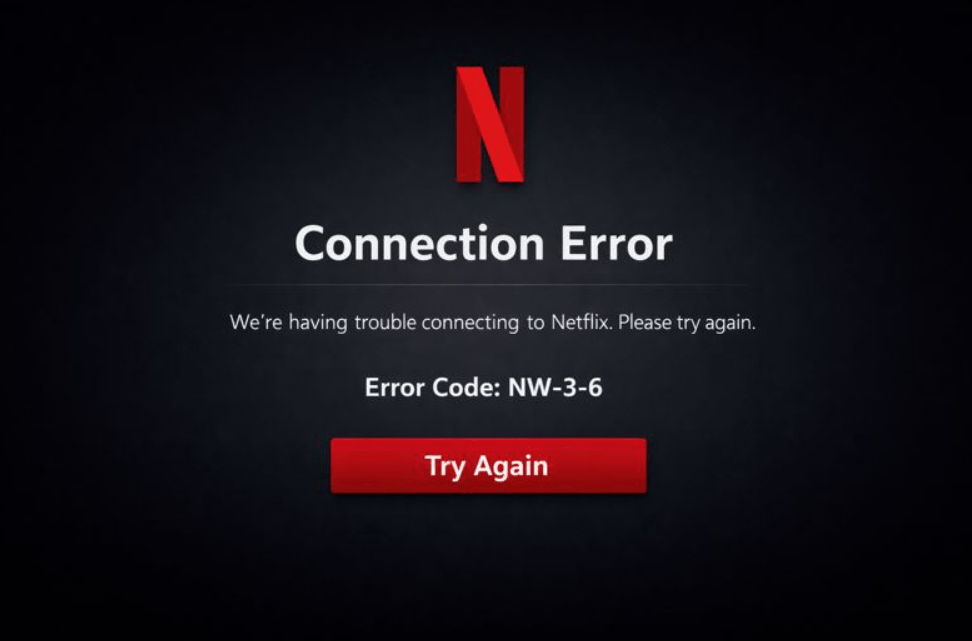
If you’re seeing Netflix error code nw-3-6, it means your device can’t connect to Netflix because there’s a network path problem, most commonly DNS, between your TV/console/streaming device and Netflix’s services (even if your Wi-Fi shows “Connected”).
The quickest fix is usually: restart your device and router, turn off any VPN/proxy/private DNS, and set DNS back to Automatic, then retry Netflix. In this guide, you’ll also learn why it happens, how to pinpoint whether it’s your device or your home network, and how to prevent it from coming back.
Netflix error code NW-3-6 in the UK: meaning, causes, and fixes
When people hit Netflix error code nw-3-6, it typically looks like one of these:
- Netflix won’t load on a Smart TV, Fire Stick, Roku, PlayStation, or Xbox.
- Other apps may still work (YouTube, iPlayer, Prime Video), but Netflix doesn’t.
- Netflix works on a phone, but not on the TV, so it feels like Netflix is randomly broken.
What’s really happening is usually this: your device is failing at one of two jobs Netflix needs it to do reliably:
- Resolve Netflix service addresses (DNS)
- Reach Netflix services over the network (routing/firewall/filtering)
Fixing NW-3-6 becomes much easier once you know which of those two is failing.
Netflix error code NW-3-6 meaning
Netflix error code NW-3-6 means your device cannot reach Netflix over your network, typically because DNS settings or network configuration are preventing the Netflix app from connecting properly.
Here’s the plain-English explanation:
- Netflix isn’t one website. The app talks to multiple Netflix services in the background.
- DNS is the Internet’s address book. It translates names (like “Netflix service addresses”) into the numeric destinations your device must connect to.
- If DNS is incorrect, blocked, slow, filtered, or misconfigured, Netflix may fail even when your Wi-Fi looks fine.
- The fault can sit on the device, the router, the ISP’s DNS, or a network restriction (VPN/proxy, parental controls, public Wi-Fi sign-in portals).
A useful mental model: Your Wi-Fi indicator only tells you “I can talk to the router.” NW-3-6 is about “Can I reach Netflix reliably from here?”
Why your internet can look fine but Netflix still fails
This is the part that catches most people out. Your internet can appear normal because:
- You might still be able to browse some sites while DNS fails for specific services.
- Some apps are more tolerant of network hiccups, while Netflix fails early if it can’t complete initial checks.
- Your phone may silently switch to mobile data, making Netflix “work” there while it fails on the home Wi-Fi.
- A router feature (filters, security DNS, ad-block DNS) can affect Netflix more than other apps.

How to fix Netflix error code NW-3-6: step-by-step
Begin with a few quick checks to confirm whether the issue is on your device or your home network. Then work through the fixes below in order until Netflix opens normally.
Check 1: Does Netflix work on another device on the same Wi-Fi?
- If yes, the problem is likely device-level (stale network profile, outdated app, custom DNS on that device).
- If no, the problem is likely home network-level (router, modem, ISP DNS, filtering, router misconfiguration).
Check 2: Does Netflix work if you switch the failing device to a different network?
Use one of these quick proof tests:
- Connect the device to a mobile hotspot temporarily, or
- Use Ethernet instead of Wi-Fi (if your device supports it).
If Netflix works on hotspot/Ethernet but fails on your normal Wi-Fi, that strongly points to a router/ISP/DNS/filtering issue rather than a Netflix account problem.
Check 3: Are you on hotel/student/shared Wi-Fi?
If yes, the top suspects are:
- A captive portal (you must accept terms/sign in via a browser first), or
- Streaming restrictions (some networks throttle/block streaming traffic or certain DNS behaviour).
A fast troubleshooting map
Use this table to jump to the most likely fix.
| What you’re seeing | Most likely cause | Best next step |
|---|---|---|
| Netflix fails on TV, but works on phone on the same Wi-Fi | Stale TV network profile, custom DNS, or app data issue | Power-cycle TV, set DNS to Automatic, refresh the Netflix app |
| Netflix fails on multiple devices at home | Router/ISP DNS issue or router misbehaving | Proper modem/router power cycle, revert router DNS changes |
| Netflix fails on hotel/student Wi-Fi | Captive portal or restricted network | Complete Wi-Fi sign-in via browser; try hotspot if restricted |
| Netflix fails only when VPN is on | VPN/proxy/private DNS interference | Disable VPN/proxy/private DNS and retry |
| Works on hotspot but not home broadband | Home router filtering, DNS, or routing issue | Revert DNS to Automatic, disable filters temporarily, escalate to ISP if needed |

Fixes in order
1) Power-cycle the device properly (not just standby)
Many TVs and streaming devices “sleep” rather than rebooting, which means network glitches can persist.
Do this:
- Turn the device off
- Unplug it from power for 30 seconds
- Plug it back in and open Netflix again
Why this helps: it clears stuck network sessions and forces the device to negotiate a fresh connection.
2) Restart your home network in the correct order
If you have a separate modem and router, order matters.
Do this:
- Unplug the router and the modem
- Wait 30 seconds
- Plug in the modem first and wait until it’s fully online
- Plug in the router and wait 1–2 minutes
- Retry Netflix
Why this helps: NW-3-6 often appears when the router’s DNS/routing state is “stuck”. A clean power cycle resets it properly.
3) Remove VPN, proxy, and Private DNS style settings during troubleshooting
Even if you didn’t intentionally set a VPN, it’s worth checking for:
- VPN apps installed on the streaming device
- Proxy settings inside the network menu
- “Private DNS”, “Secure DNS”, or similar settings (on devices that support them)
For troubleshooting, keep your setup as simple as possible: disable VPN/proxy features and set DNS to Automatic.
4) Set DNS back to Automatic (the most common root fix)
This is the most important step for many NW-3-6 cases.
Where to find DNS on most devices
Common paths look like:
- Settings → Network → Advanced / IP settings
- DNS → Automatic / “Obtain automatically”
If you see Manual, Custom, or any numbers entered, switch back to Automatic.
If you changed DNS at the router level
Router-level DNS affects every device in your home.
What to do:
- Log into your router admin settings
- Find Internet/WAN or DNS settings
- Set DNS back to Automatic / Get from ISP (or remove custom entries)
- Save changes and reboot the router
5) If Automatic DNS doesn’t work, use a controlled DNS test
Sometimes your ISP’s DNS has reliability issues, or your router is mishandling DNS requests. A controlled DNS test helps confirm whether DNS is the real cause.
Use this controlled approach:
- Confirm DNS is Automatic and you’ve done the full network restart (Steps 2 + 4)
- If it still fails, switch to a reputable public DNS temporarily
- Retest Netflix
- If it works, you’ve proven the issue is DNS-related
- Decide whether to keep the public DNS, revert to Automatic, or escalate to your ISP
The table below helps you choose a DNS option without making unnecessary changes.
| DNS setting | When to use it | Pros | Cons/risks |
|---|---|---|---|
| Automatic / ISP DNS | First-line for NW-3-6 | Best compatibility, simplest support | If ISP DNS is unstable, Netflix may still fail |
| Reputable public DNS | If Automatic fails and you want to test DNS as the cause | Can bypass flaky ISP DNS | Misconfiguration can cause other issues; ISP support may ask you to revert |
| Filtering/ad-block DNS | Only after Netflix is stable | Useful controls | Can block required services and trigger errors like NW-3-6 |
Device-specific fixes – when only one device is affected
Smart TVs (Samsung / LG / Sony / Panasonic)
Follow this sequence:
- Power-cycle the TV (unplug for 30 seconds)
- In Network settings, use “Reset Network” if available
- Reconnect Wi-Fi fresh (re-enter password)
- Confirm DNS is Automatic
- Check for Netflix app updates and TV firmware updates
Extra tip: If your router splits networks into 2.4GHz and 5GHz, test the other band. Some TVs have a weaker 5GHz range through walls.
Fire TV / Fire Stick
- Restart from Settings (or power-cycle)
- Forget the Wi-Fi network and rejoin
- Disable any VPN app temporarily
- Recheck DNS/advanced network settings if you’ve ever customised them
Roku
- System restart
- Forget and re-add Wi-Fi
- If you use router-level filtering/ad-block DNS, disable it temporarily while testing
PlayStation (PS4/PS5)
- Reconfigure the connection in Network settings
- Confirm DNS is Automatic
- Run the console’s network test
- Retry Netflix
Xbox (One / Series X|S)
- Network settings → Advanced
- Confirm DNS is Automatic
- Run the network test
- Retry Netflix
If Netflix works on your phone but not on your TV
This is extremely common and usually has a straightforward explanation.
The most common reasons
- Your phone is using mobile data (so it’s not testing the same network).
- Your TV has a stale network profile or custom DNS.
- Your TV is connected to a different Wi-Fi network name (for example, “HomeWiFi-5G” vs “HomeWiFi”).
The fastest proof
- Turn mobile data off on your phone and try Netflix again on Wi-Fi only
- Connect the TV to a hotspot briefly – If Netflix works on a hotspot, your home network is the issue, not the TV hardware.

Hotel/student/shared Wi-Fi: the two common blockers
Public networks fail for Netflix more often than home broadband for two reasons.
1) Captive portal sign-in hasn’t been completed
Some Wi-Fi requires you to accept terms/sign in on a web page. TVs and consoles don’t always surface that page clearly.
Try:
- If the device has a browser, open it to trigger the sign-in page
- If it doesn’t, authenticate with a phone/laptop first
- If the network supports it, register the device MAC address (some accommodations require this)
2) The network restricts streaming or certain DNS behaviour
If the portal is completed and it still fails, the network may be restricting streaming. In practice, a hotspot is usually the quickest workaround.
Router-level causes that make NW-3-6 come back
If NW-3-6 returns repeatedly, the router configuration is often involved, especially after changes.
Common triggers include:
- Parental controls/family filters
- Security DNS/safe browsing features
- Ad-block DNS or network-wide filtering tools
- Overly strict firewall settings
- Mesh Wi-Fi nodes (a device clinging to a weak node)
- Similar DNS and VPN-related issues are known to affect other streaming platforms too, such as Disney Plus Error Code 73, which often appears due to region-based restrictions or misconfigured network settings.
A sensible order of action:
- Disable filters temporarily and retest
- Revert DNS to Automatic and reboot the router
- Update router firmware if available
- As a last resort, factory reset the router and set up fresh
Factory reset can sound extreme, but if a router has been heavily customised over time, it’s often the cleanest way to remove hidden conflicts.
Deeper fixes for stubborn cases
If you’ve done the basics and it still fails, these are worth checking.
Date and time (surprisingly important)
If the device time is wildly wrong, some secure connections can fail.
What to do:
- Enable Automatic date & time
- Reboot the device
- Retry Netflix
IPv6 quirks
Some routers/devices handle IPv6 poorly, which can cause app-specific issues.
If your router includes an IPv6 setting, you can try this quick test:
- Disable IPv6 temporarily
- Reboot router
- Retest Netflix
If Netflix starts working afterwards, IPv6 routing is likely contributing to the issue. You can then keep IPv6 off temporarily, update your router firmware, or ask your ISP for advice.
App cache/data corruption (where supported)
On some platforms (Android TV and similar), clearing Netflix cache/data can fix repeated start-up failures.
- Clear Netflix cache/data
- Restart the device
- Sign back in and retry
What to tell your UK ISP (BT, Sky, Virgin Media, TalkTalk, Plusnet)
If Netflix works on a mobile hotspot but not on your home broadband, escalating is reasonable. Keep it specific and evidence-led.
Use this checklist when you contact your ISP:
- Netflix fails with NW-3-6 on home broadband, but works on a mobile hotspot.
- Please check DNS resolution reliability on my line/router.
- Are any security filters/parental controls enabled on my connection or router profile?
- Can you confirm there are no routing blocks affecting Netflix connectivity?
- If this is a router issue, is there a firmware update or a replacement router option?
This approach frames the issue as a network/DNS problem rather than a vague Netflix is broken complaint.
What people talk about Netflix error code nw-3-6 online?
A weird issue(nw 3-6)with Netflix on Smart TV
byu/Levarator_01 innetflix
We double checked and this doesn’t appear to be an issue on our end. The “NW” in NW-3-6 stands for Network as this error is indicating a connection issue. Per the previously linked article the last step is to reach out to your Internet Provider if the steps don’t resolve. *JENN
— Netflix CS (@Netflixhelps) May 10, 2019
FAQs
Why do I get Netflix error code nw-3-6 when Wi-Fi shows connected?
“Connected” only means your device can talk to the router. NW-3-6 is about whether your device can resolve and reach Netflix services reliably. DNS or routing problems can block Netflix even when Wi-Fi looks normal.
Why does Netflix work on my phone but not on my TV?
Often your phone is using mobile data, or your TV has stale/custom network settings. Turn off mobile data to test properly, or connect your TV to a hotspot briefly to confirm whether your home network is the issue.
Should I change DNS to fix NW-3-6?
Start by setting DNS back to Automatic. If that doesn’t work, a temporary switch to a reputable public DNS can confirm whether DNS is the root cause. If it fixes the error, you’ve likely uncovered an ISP DNS reliability issue or a router DNS problem.
When should I factory reset the router?
If NW-3-6 keeps returning after you’ve power-cycled properly, reverted DNS to Automatic, disabled VPN/proxy/filtering features, and confirmed it’s not isolated to one device, a factory reset can remove hidden configuration conflicts.
Conclusion: the fastest way to fix NW-3-6
Netflix error code NW-3-6 is a network reachability problem, most often tied to DNS settings or network restrictions. Start with real power-cycles, remove VPN/proxy/private DNS, and set DNS to Automatic. If it still fails, use a hotspot test to prove whether the issue is your home network, then escalate to your ISP with clear evidence.
Author note
This guide follows the same troubleshooting logic used in IT support: isolate whether the fault is the device or the network, remove variables (VPN/custom DNS), then apply changes in a controlled order so you can identify what actually fixed the issue.