If you’re in the UK and you’re seeing Disney Plus error code 73, this is what it means — and the fastest way to fix it
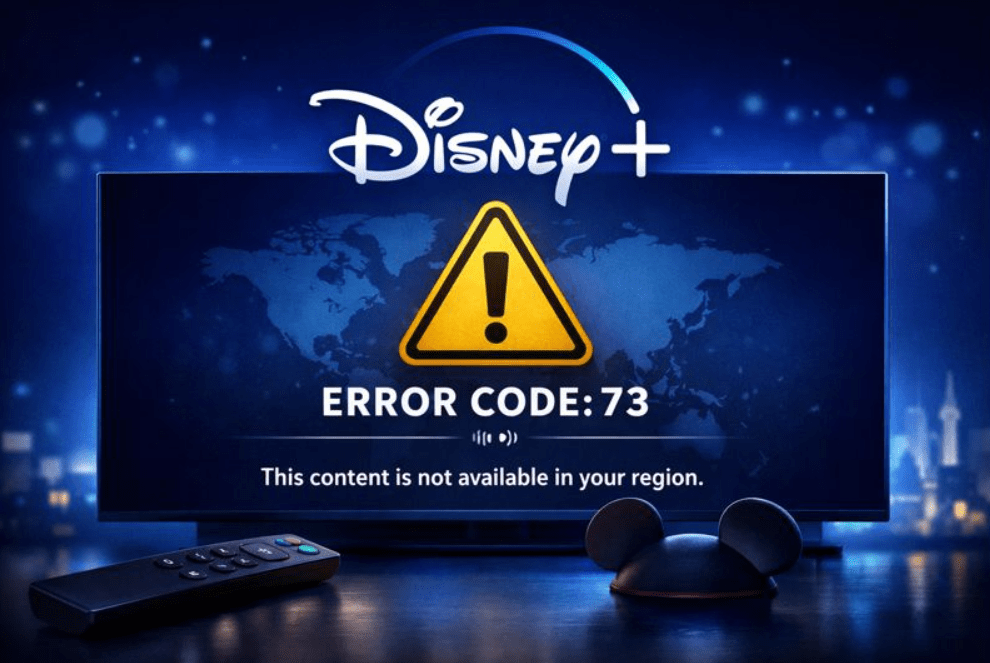
Disney Plus error code 73 means Disney+ thinks your connection is coming from an unsupported country/region or it looks like you’re masking your location.
Most of the time, this is triggered by a VPN, proxy, or Smart DNS, but it can also happen in the UK if your ISP IP address is mislocated, your DNS settings make your traffic look non-UK, or a particular device/app cache is stuck.
Disney plus error code 73 (UK): meaning, causes, and fixes that actually work
In most cases, you can fix it by disabling any VPN/proxy/Smart DNS, restarting the Disney+ app and your device, then rebooting your router. If that doesn’t work, the steps below help you pinpoint whether it’s your network, your ISP IP location, or a device-specific issue.
Below is a clear breakdown of the causes and the exact fixes to try on UK broadband, mobile data, and common streaming devices.
Disney plus error code 73: what it means (and why it happens)
When Disney+ throws Disney plus error code 73, it’s effectively saying: “I can’t confirm you’re streaming from a supported region.” Disney+ enforces this because licensing rights vary by country.
What most people don’t realise: Disney+ doesn’t only rely on “where you are physically”. It relies on what your network appears to be.
Disney+ commonly evaluates signals like:
- Public IP address (the location associated with your broadband or mobile network)
- VPN/proxy usage (including “always-on” VPN, enterprise proxies, browser proxy settings)
- DNS behaviour (especially custom DNS, “secure DNS”, ad-block DNS, Smart DNS)
- Network reputation (shared networks can look unusual: hotels, student halls, workplaces)
- Session/app state (a particular device can get “stuck” while others work fine)
That’s why you can be sitting in Manchester and still see Disney Plus error code 73.
Think of Error 73 as a location check based on network signals. The goal is to remove anything that makes your connection look ‘out of region’, then test on a clean network path.
Disney plus error code 73: the quickest fix checklist (do this first)
Do these steps in order. This is the most reliable “no-drama” route because it eliminates the usual causes fast.
- Disable VPN, proxy, and Smart DNS completely
- If you have a VPN app installed, don’t just disconnect fully turn it off and remove any “always-on” behaviour.
- Check device settings for VPN profiles (especially on iPhone/iPad).
- If your router uses Smart DNS or custom DNS, revert to automatic DNS for testing.
- Force close Disney+ and sign out
- Sign out of Disney+ (if you can).
- Force close the app (don’t just switch away).
- Reopen and sign in again.
- Restart the device you’re watching on
- TV/streaming stick: power off properly (ideally unplug for 20–30 seconds).
- Phone/tablet: restart.
- Restart your router
- This can refresh your public IP and clear odd routing states.
- Test a different network
- Try mobile data on your phone.
- Or use your phone as a hotspot and connect your TV/streaming device briefly.
- This single test can instantly reveal whether the problem is your home broadband or your device/app.
If you’ve tried the quick fixes and it still appears, use the checks below to identify the root cause.
Why do I get Error 73 in the UK even without a VPN?
This is the scenario that confuses people most, and it’s where a deeper, methodical approach matters.
Your ISP IP address is mislocated (very common in works on mobile, fails on Wi-Fi cases)
Sometimes your broadband IP address is tagged as being in the wrong country in one or more IP-location databases. That can happen after:
- Switching ISP
- Installing a new router
- Moving home
- ISP network changes (you’re assigned a newer or less common IP block)
How it shows up: Disney+ works on your phone using 4G/5G, but fails on your home Wi-Fi. Or it works at a friend’s house, but not at yours.
What to do:
- Restart your router (yes, again).
- If it still fails, try leaving the router off for a few minutes and turning it back on (some ISPs reassign IPs more readily after a longer drop).
- If the problem continues, you may need to contact your ISP and/or Disney+ support and explain you suspect an incorrect IP geolocation.
This is one of the few situations where you can do everything “right” locally and still need provider-side help.
DNS settings are causing a location mismatch (including Secure DNS and AdBlock DNS)
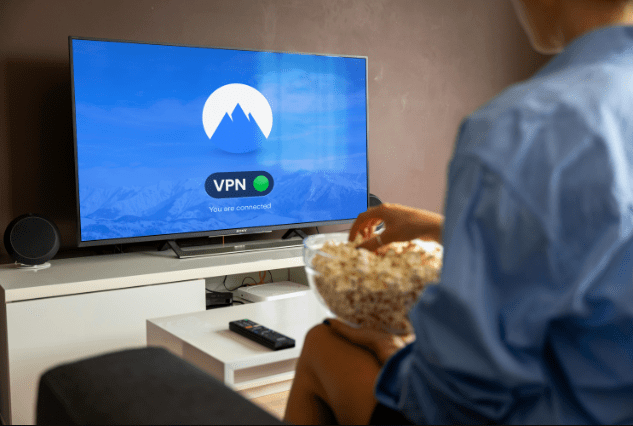
DNS translates site names into IP addresses. If your DNS setup routes requests in a way that looks non-UK (or looks like a “location unmasking” service), Disney+ can decide your region is uncertain.
Common culprits:
- Smart DNS services
- Custom DNS on the router
- “Secure DNS” / DNS-over-HTTPS in browsers
- Network-wide ad blockers using DNS filtering
Best test (safe and reversible):
- Temporarily set DNS to Automatic (router and/or device).
- On browsers, temporarily disable Secure DNS.
- Retest Disney+.
If it works after this change, you’ve found your cause, then you can decide whether to keep DNS automatic or reconfigure your custom DNS more carefully.
Hotel, workplace, or student accommodation Wi-Fi uses proxying or shared IPs
Shared networks often:
- Route traffic through proxies
- Use content filters
- Place everyone behind a small number of public IP addresses
That can make streaming platforms cautious.
Best workaround: Use a mobile hotspot test. If it works on hotspot but fails on the Wi-Fi, the Wi-Fi network is the cause (not your Disney+ account).
One device is “stuck” while others work (cache, app state, or device routing)
This is common with:
- Smart TVs
- Roku
- Fire TV devices
- Set-top boxes
Because those platforms can retain app/network state longer than phones and laptops.
Clue: Disney+ plays fine on your phone, but your TV shows Error 73 on the same Wi-Fi.
The fix often isn’t more router restarts. It’s an app reset (clear app data, reinstall, update firmware).
A quick “symptom → cause → fix” table (use this to diagnose faster)
| What you notice | Most likely cause | Best next step |
|---|---|---|
| Works on mobile data, fails on home Wi-Fi | Home IP mislocated or router/DNS issue | Restart router; test automatic DNS; try hotspot on TV |
| Fails only on one device (TV/streaming stick) | Device app cache/state | Clear app data; reinstall Disney+; update device OS |
| Fails on hotel/work/student Wi-Fi | Proxy/shared network filtering | Use mobile hotspot; complete captive portal login |
| You used a VPN in the past | VPN profile or leftover routing | Remove VPN profiles; disable “always-on”; restart device |
| Browser fails, app works | Cookies/extensions/secure DNS | Incognito test; disable extensions; clear site data |
Deeper troubleshooting (when the quick fixes don’t work)
Do a quick Wi-Fi vs mobile data test to isolate the cause
This is the single most useful diagnostic step.
Test A: Disney+ on your phone using mobile data
- If it works, your account is fine.
Test B: Disney+ on the same phone using home Wi-Fi
- If it fails on Wi-Fi, the issue is your home network (IP/DNS/router).
Bonus test for TVs/sticks: Connect your TV/streamer to your phone hotspot briefly
- If it works on hotspot, your home broadband network is the problem.
- If it still fails: your device/app environment is the problem.
This quick comparison helps you avoid unnecessary resets by showing whether the problem sits with your broadband connection or with a specific device/app.
Fix home broadband causes (router, DNS, and network settings)
Work through these in order:
Reset DNS to automatic (temporarily)
- If you changed DNS on your router, revert it to default/automatic.
- If you use a DNS-based ad blocker, disable it briefly.
- Retest Disney+.
If that solves it, reintroduce changes one by one to find the exact trigger.
Reboot router properly
- Power off the router at the plug.
- Wait 30–60 seconds.
- Turn it back on and wait for a stable connection.
- Retest.
If you suspect IP mislocation, a longer power-off (a few minutes) can sometimes help.
Check whether your device is using a proxy
On computers, especially:
- System proxy settings might be enabled (sometimes left on by workplace tools).
- Browser proxy settings might differ from system settings.
Disable proxy for testing.
If you also stream on Netflix, it’s worth knowing that Netflix Error Code NW-3-6 usually points to a network connectivity or DNS issue rather than a location restriction, so the same Wi-Fi vs mobile data test and router/DNS reset approach can help you isolate the cause quickly.
Fix device-specific causes (TVs, streaming sticks, and browsers)
If your two-network test points to a device issue, do the device-specific steps below.
Device-by-device fixes for Disney Plus Error 73
Smart TVs (Samsung/LG/Android TV): the clean reset approach
Smart TV apps are notorious for holding onto stale states.
Do this sequence:
- Update the TV software/firmware (if pending)
- Update Disney+ app
- Clear Disney+ app cache/data (if your TV OS allows it)
- Sign out of Disney+
- Power cycle the TV (unplug for 20–30 seconds)
- Sign back in and test
If your TV doesn’t allow clearing app data, uninstall Disney+ and reinstall.
Amazon Fire TV / Firestick: remove VPN leftovers and reset app state
Fire TV devices often have VPN apps installed, and “leftovers” are common.
Steps:
- Uninstall or fully disable VPN apps (for testing)
- Restart Fire TV
- Clear Disney+ app cache/data
- Reinstall Disney+ if needed
- Test again (ideally after a router restart)
Roku: reinstall Disney+ and isolate network vs device
Roku can be stubborn when the cached network state goes bad.
Try:
- Remove the Disney+ channel/app
- Restart the Roku
- Re-add Disney+
- If still failing, do the hotspot test once
Sky and set-top environments: treat it like a “device container”
If Disney+ works on your phone but fails on your set-top platform:
- Refresh/restart the platform
- Update apps/software
- Re-authenticate Disney+ (sign out/in if possible)
- Do the hotspot test (it’s the quickest “is it the broadband?” answer)
iPhone/iPad: check VPN profiles and privacy routing
On iOS, you can have VPN-like routing without meaning to.
What to check:
- VPN profiles in Settings (remove any you don’t need)
- Any “always-on” VPN behaviour
- If you use privacy routing features that change how your IP appears, temporarily disable them to test
Then:
- Force close Disney+ → reopen → test on Wi-Fi and mobile data
Android: clear storage and check always-on VPN
- Clear Disney+ cache and storage
- Check for always-on VPN settings
- Restart device
- Retest on Wi-Fi and mobile data
Browser (Chrome/Edge/Safari): the clean browser test
Browsers can fail due to:
- Cookies/site data
- Privacy extensions
- Secure DNS settings
- Proxy settings
Do this:
- Try an incognito/private window
- Disable extensions that affect privacy/networking
- Clear site data for Disney+ (cookies + cache)
- Try a different browser
Quick device fix guide
| Device | First fix to try | If it still fails |
|---|---|---|
| Smart TV | Clear app data + power cycle | Reinstall app + hotspot test |
| Fire TV | Remove VPN apps + restart | Reinstall Disney+ + router DNS test |
| Roku | Remove/re-add Disney+ channel | Hotspot test to isolate network |
| iPhone/iPad | Remove VPN profiles + restart | Compare mobile data vs Wi-Fi results |
| Browser | Incognito + disable extensions | Clear site data + disable Secure DNS |
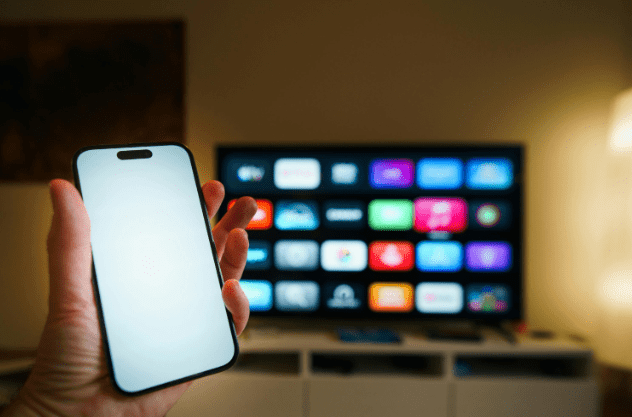
“But I’m travelling…” and other UK-specific situations
What if I’m outside the UK?
If you’re in a country/region where Disney+ isn’t available or has restrictions, Error 73 may be expected. If you’re in a country where Disney+ is available and you still see Error 73, treat it like a network-signal issue:
- Ensure VPN/proxy is off
- Use the two-network test (local Wi-Fi vs mobile data)
- Reset DNS to automatic for testing
Why does it fail on hotel or workplace Wi-Fi but work at home?
Because those networks often use shared IPs, proxies, or filtering systems. Your hotspot test will confirm it quickly.
Why does it fail on Wi-Fi but work on mobile data?
Because the public IP and DNS path are different. Mobile networks often appear “cleaner” and more consistently geolocated than some broadband IP ranges.
When you should contact Disney+ support and what to say
If you’ve:
- confirmed the issue happens only on your home broadband (works on mobile data/hotspot), and
- reset DNS to automatic, and
- restarted the router,
Then it’s reasonable to contact Disney+ support and explain that you believe your broadband IP is being geolocated incorrectly or your network is being misidentified.
Use this short, practical script: “I’m in the UK. Disney+ works on mobile data, but on my home broadband, it shows Error Code 73 on multiple devices. VPN/proxy is disabled. I restarted the router and tested with automatic DNS. Please check if my public IP/network is being misidentified for region availability.”
If support asks you to repeat standard troubleshooting, you can share the results of your Wi-Fi vs mobile/hotspot tests. That evidence often helps move the case beyond basic scripts.
What to prepare before contacting Disney+ support
- Device model(s) affected
- App version (if visible)
- Whether it fails on Wi-Fi only or also on mobile data
- Your ISP name
- Approximate location (UK city/area)
- Time and date it occurred
Prevention tips (so Error 73 doesn’t come back)
Small habits make a big difference:
- Don’t leave VPN or Smart DNS enabled on streaming devices “just in case”.
- If you use custom DNS for ad blocking, document your settings so you can revert quickly.
- Keep TV/streaming stick firmware and the Disney+ app updated.
- After changing ISP or router, test Disney+ early; it’s easier to resolve mislocation issues while changes are fresh.
What people talk about Disney Plus error code 73 issue online?
@DisneyPlus hey guys, I’m getting a region issue on my Amazon Firestick (Error Code 73). Odd thing is, I wasn’t just an hour ago. I’ve restarted the stick twice but can’t get past it. Any news (I’m in the UK)
— Somerled Mackay – #actor #comic #EquityUK (@SomeAreDead) June 11, 2025
Fix found for: Error 73 region errorvpnproxy, showing wrong language at login
byu/01011110101101010010 inDisneyPlus
Posts from the roku
community on Reddit
Final summary
If you’re in the UK and you see Disney Plus error code 73, it’s almost always because Disney+ can’t confirm your region based on network signals. Start by disabling VPN/proxy/Smart DNS and restarting the app/device/router. Then use the two-network test to pinpoint whether the cause is your home broadband identity or a device/app state issue.
FAQs
What is Disney Plus error code 73?
It’s a location/availability error. Disney+ believes your connection is coming from an unsupported region, or your network looks like it’s masking its location.
Is Error 73 always caused by a VPN?
No. VPN/proxy is common, but UK users can also see it due to IP geolocation issues, DNS settings, shared Wi-Fi proxying, or a device/app being stuck.
Why does Disney+ work on my phone but not my TV?
Because your TV app can hold stale network state, or your TV is only tested on your home broadband path, which Disney+ rejects. Use a hotspot test to isolate quickly.
Does changing DNS fix Disney+ Error 73?
Sometimes. Reverting DNS to automatic for testing is a safe way to confirm whether DNS is involved.
What should I do if it still won’t work in the UK?
Run the two-network test (mobile data vs Wi-Fi). If it only fails on Wi-Fi, focus on router/DNS/ISP IP mislocation and contact Disney+ support with your test results.
Author expertise note
Based on years of troubleshooting streaming apps across UK broadband, shared Wi-Fi networks, and smart TV platforms, Error 73 is rarely “mysterious” once you isolate whether it’s a network identity problem (IP/DNS/proxy) or a device state problem (app cache, platform container). The two-network test in this guide is the fastest way to get a confident answer.